Joining a meeting
The first step is always the same: you get a meeting link and click it. That's basically it - but a few details make the experience noticeably smoother.
What a meeting link looks like
URLs vary by provider and setup; typical forms:
https://meet-modular.com/rooms/xxx-yyy-zzz/join
https://moodle.think-modular.com/mod/bigbluebuttonbn/guest.php?uid=thisisauniqueid
Sometimes you get the link by email or chat, sometimes it's embedded in your learning platform (Moodle, Drupal, etc.).
Step 1 - Open your browser
BBB runs in the browser, no installation. Recommended:
- Chrome or Edge (best compatibility)
- Firefox (works reliably)
- Safari (version 14+, some features limited)
Very old browsers (Internet Explorer, old Safari versions) are not supported. Update your browser if BBB refuses to connect.
Step 2 - Enter your name
If you click the link without being logged into Greenlight or a learning platform, you'll be asked for your name:
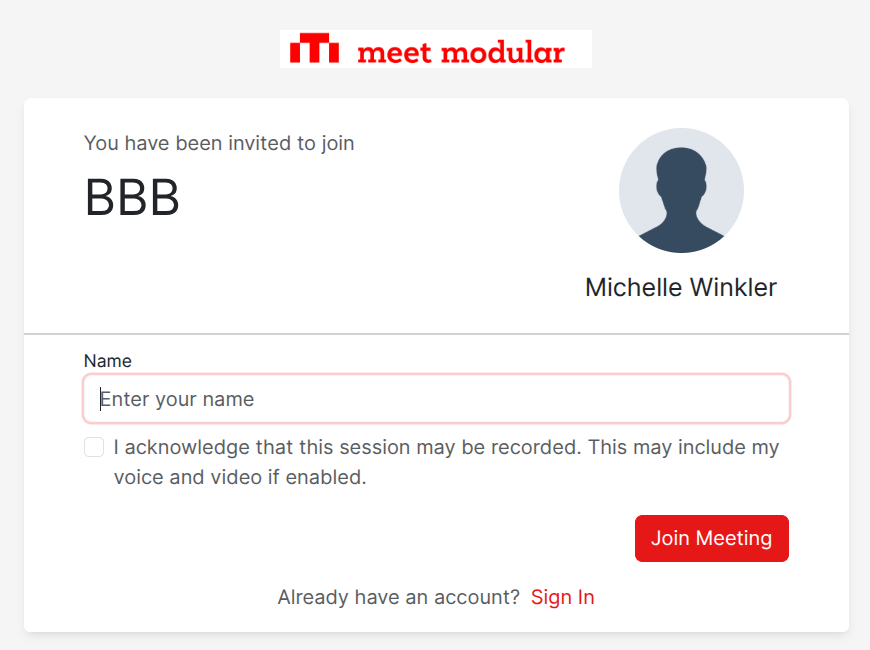
Enter your real name if that's customary in your context - the moderator may have to remove you otherwise if it's unclear who you are.
Step 3 - Wait for approval (optional)
Depending on the room's configuration you'll end up either:
- Directly in the meeting (if the room is open), or
- in a waiting area until the moderator lets you in.
In the waiting area you'll see a message like "Please wait, you'll be admitted shortly." Just wait - nobody sees or hears you.
What if I'm late?
No problem - you can join the meeting at any time while it's running. There's no "tardiness" lockout. But the moderator does see when you join.
Common joining issues
| Problem | Solution |
|---|---|
| "Meeting not found" | The room hasn't started yet or has already ended - ask the moderator |
| Endless loading spinner | Clear browser cache (Ctrl+Shift+R), try another browser |
| "Microphone not detected" | Check browser permissions; pick the right mic in system settings |
| No sound after joining | Check the audio settings dialog (see next chapter) |
The next chapter dives into audio and webcam in detail - including the audio settings dialog.